How it Works - House Points
An electronic House or Team Point system.
House Points
'Using House Points couldn't be simpler'
“How do I access the House Point screen?”
To access House Points either as a teacher with a class or as a member of staff such as a school leader who wishes to add points to a student of their choice or for parents and students wanting to see their point breakdown at home is very simple.
Teacher Access
- Login via ‘Teacher Login’ located at the top right of the Primary Learning Zone website.
- You are now on the dashboard
- Click on the left box in this example ‘ENTER Green Hill Primary House Points.’

You can now switch between the House Point Screen and Class Screen. Your students will enjoy seeing where their team is in relation to
House Points Screen

Class Screen

- Student school access: Students can either click on their house and then scroll down to find their name or by simply clicking on their name on the class screen.
- Then the student or in this case Amir, clicks to add his points.
- Then the student or in this case Amir, simply clicks to add his points to his and his House’s total.
- Class Teachers and their Teaching assistant or aids may wish to award points to multiple students e.g. for all students who may have improved their test score or read at home. To do this:
- Click on the cog, which will say ‘Assign House Points’ when the cursor hovers above it.
- Then click in the ‘Check / Un Check All’ box. All students are now checked so to remove students who are not going to receive the points just click in the boxes ‘tick to assign points’.

Other Staff Access
Other staff members e.g.. School Leaders. Using an ipad is a great way for
any member of staff such as a Head or Principal to award points to a
student or group of students ‘caught’ doing the right thing or being
outstanding. The process to do this is simple and easy
- Login using the ‘Teacher / Others’ login via the website.
- Click onto the House of the student you wish to award points to.
- Then click on the ‘cog’ icon which is on the top right of the screen
- Scroll down the page to find the class and student and award point card required.
- Then:
- Use the ‘Check/ Uncheck All’ button to select students requiring points
- Use the ‘Select Points Card’ to select the required point icon
- Finally click the green ‘Assign’ points button to award the points.
Student Access
- Students and their parents can see a breakdown of the points awarded. To do this they simply login via the ‘Student Login on the website.

- Send home login flyers are available from the website to assist schools in communicating to parents their child’s login and password.

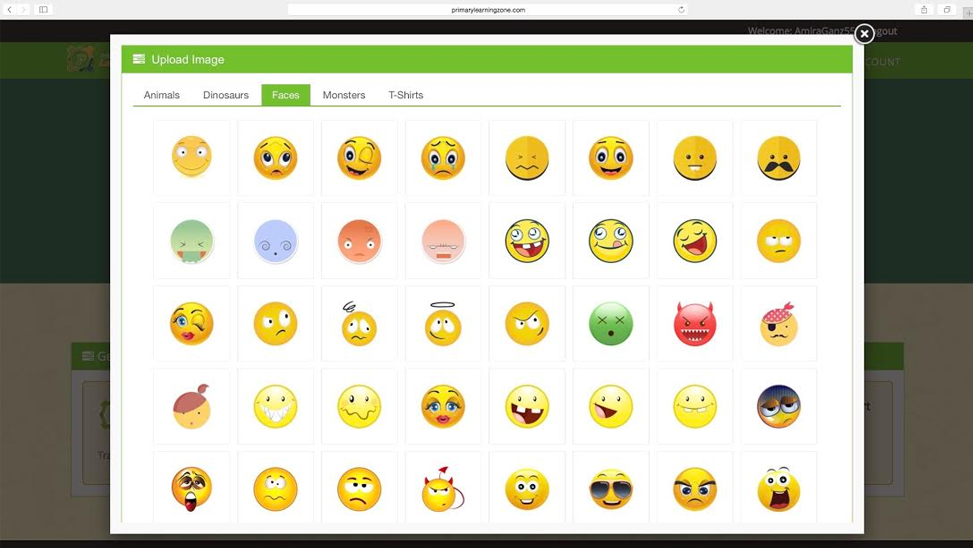
- Children can have great fun changing their avatar that appears on screen from the selection below:

Why not use your iPad to award House Points as you walk round your school?